
v3.29
Feb 16, 2026
Support for metafields in multi-recipient orders and uploads, plus improved recipient fields
Checkout data quality + metafields + better import mapping
This release focuses on reducing downstream order cleanup by validating recipient inputs earlier, expanding metafields support across checkout and integrations, and making manual imports easier to map into the exact fields your team (and your downstream systems) expect.
1) Improve recipient data quality (fewer downstream fixes)
These improvements help catch common recipient issues earlier—before orders are created and handed off to fulfillment. By validating contact fields, optionally blocking PO Boxes, and guiding shoppers on custom text inputs, teams spend less time cleaning up orders and more time shipping gifts correctly the first time.
What’s improved
Use a single "Name" for each recipient or split between First and Last.
And if you split first and last, show an error if either field is blank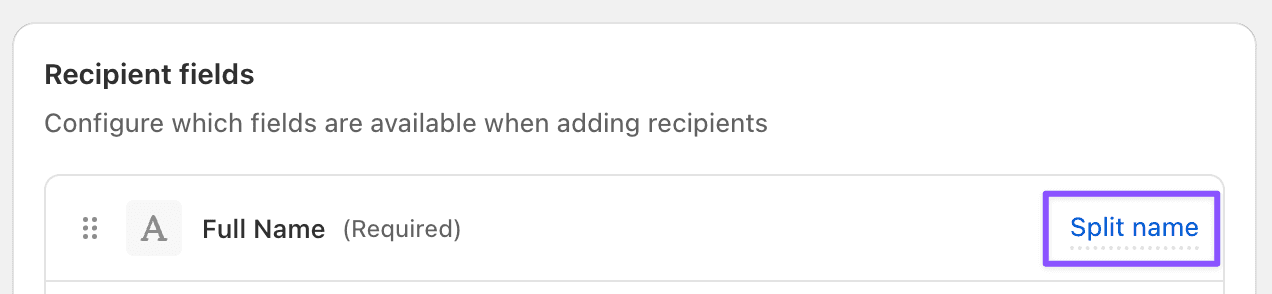
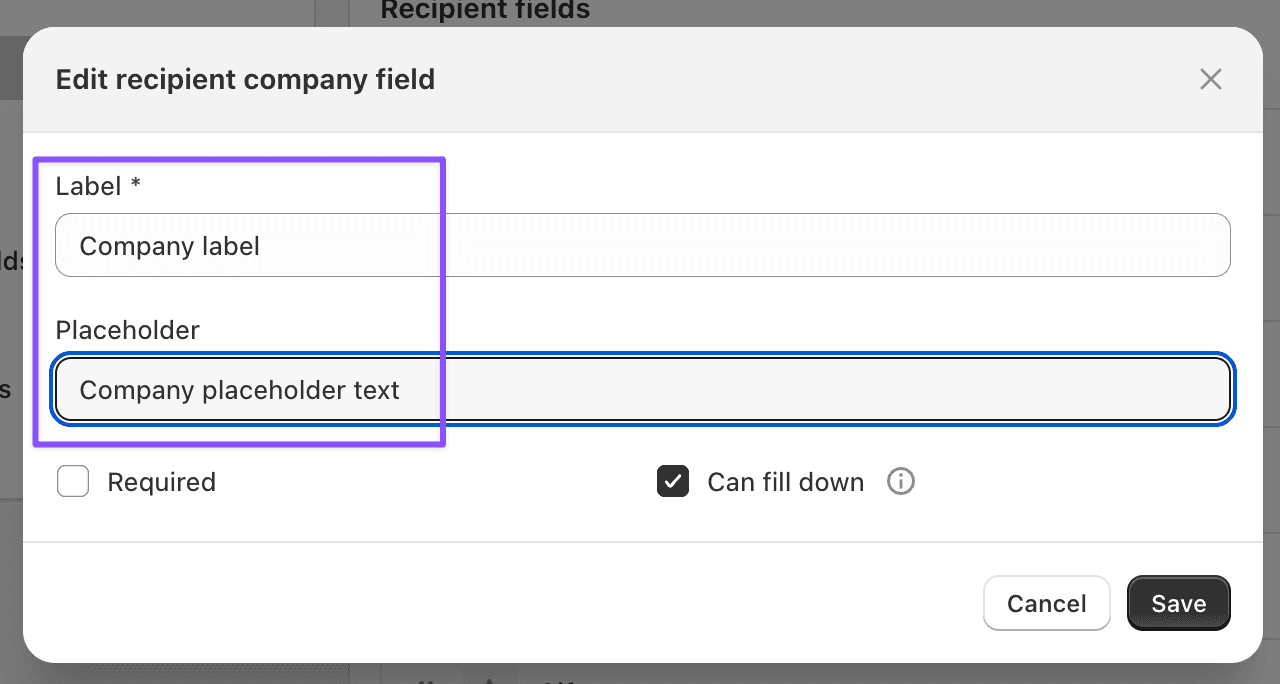
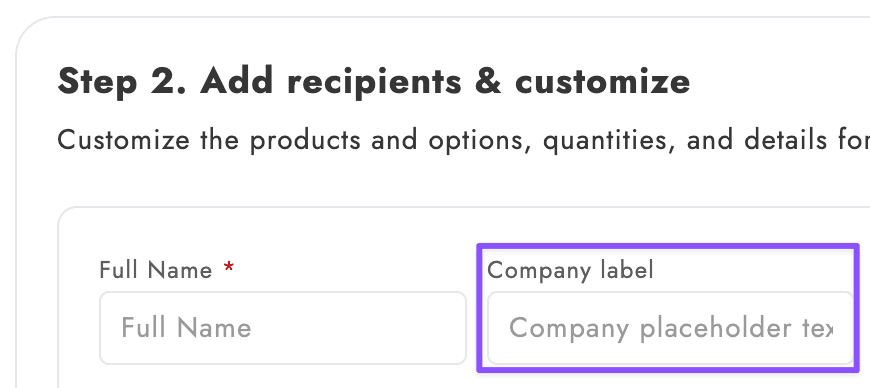
For any recipient fields, customize both the display label and the placeholder text:
Added recipient email + phone validation in the checkout block.
These validations run automatically anywhere the checkout block collects recipient contact information—no settings required.Added an option to disallow PO Boxes for recipient addresses.
Enable this when you ship products that can’t be delivered to PO Boxes (or when PO Boxes create consistent carrier exceptions).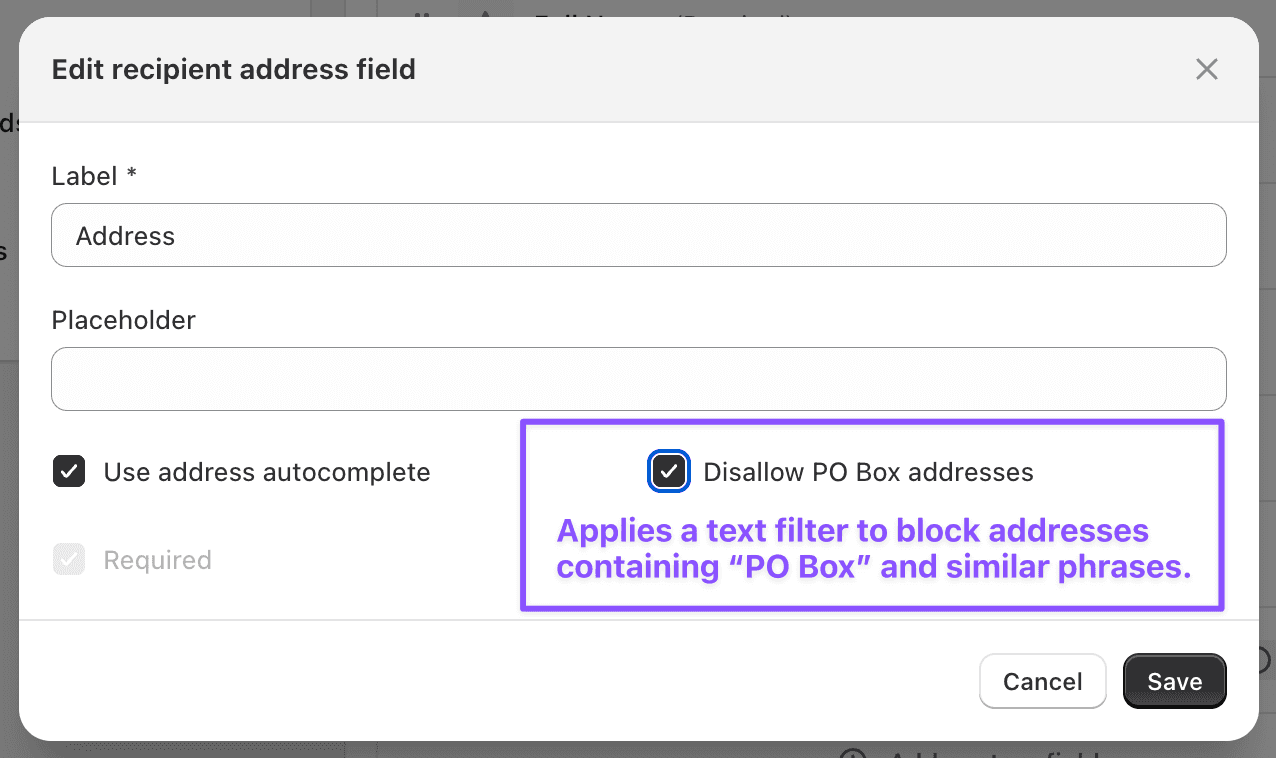
Disallow PO Box addresses — applies a text filter to block addresses containing ‘PO Box’ and similar phrases.
Custom recipient text fields can now be multiline inputs and support max length with a character counter.
This is especially useful for gift messages and other text fields that need to fit within operational limits (packing slips, 3PL constraints, delivery notes, etc.).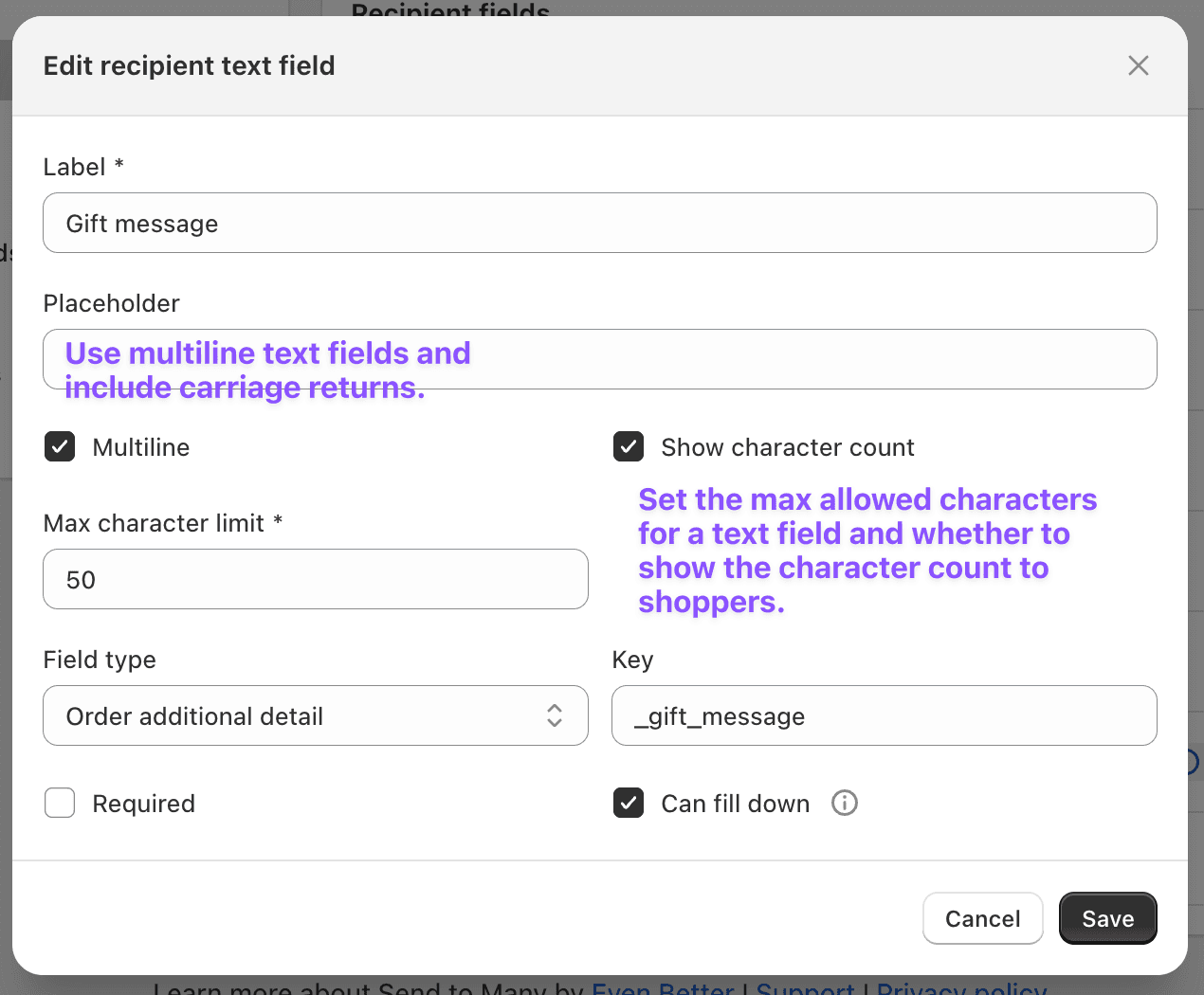
Set the max allowed characters for a text field and whether to show the character count to shoppers.
2) Metafields support across checkout, imports, and integrations
Metafields support makes Send To Many more automation-friendly by letting merchants carry structured data through the entire workflow—capturing it at checkout (or mapping it during imports), and then reliably passing it into downstream systems. This is especially useful for operations fields, internal IDs, delivery instructions, or B2B-related metadata that needs to flow with each order.
What’s improved
Checkout recipient fields can now use order metafields.
When adding a recipient field, choose a field type (Text, Date, or Number), then set Field type → Order metafield. Send To Many will load available Shopify Order metafields from your store that match the selected field type.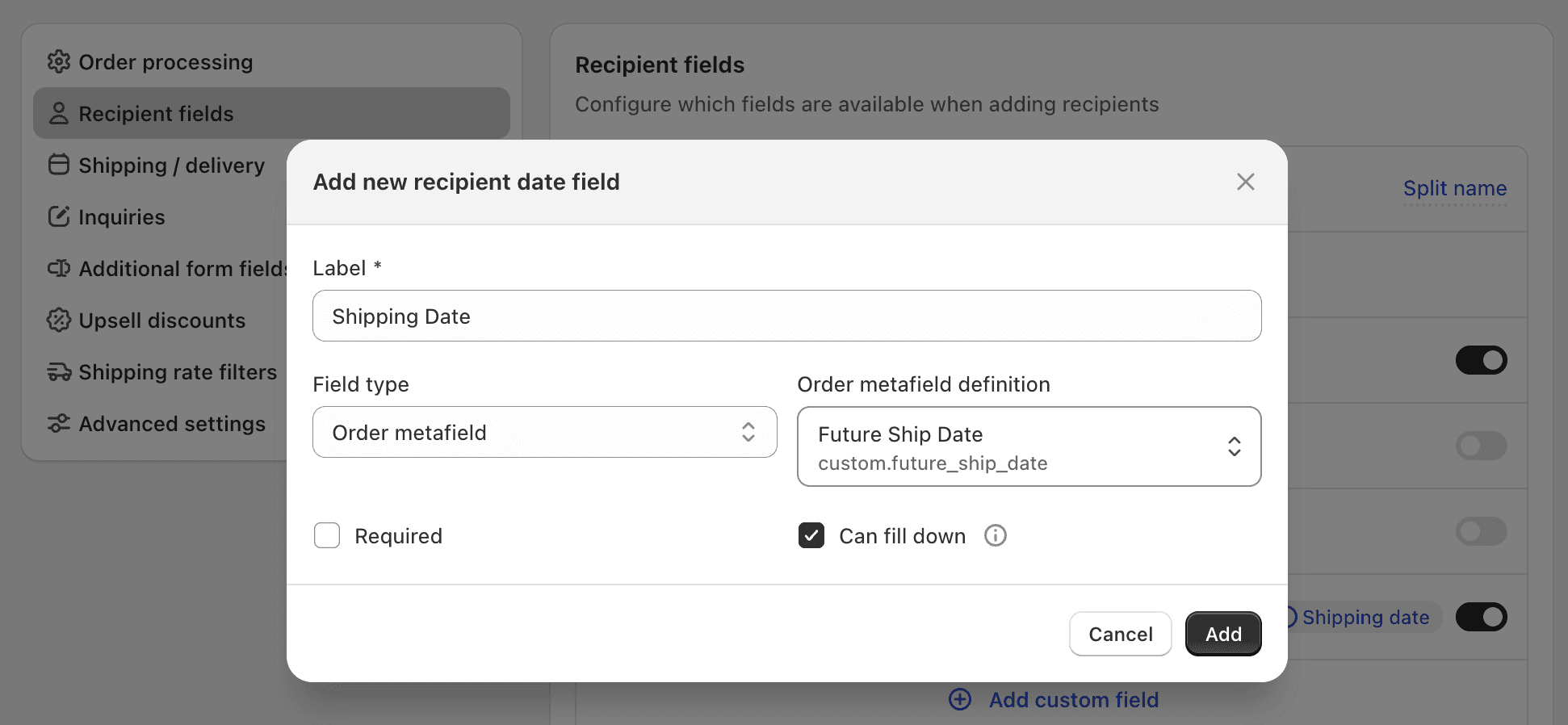
Add new recipient date field — Field type: Order metafield; select the Order metafield definition (e.g.,
custom.future_ship_date).Custom date and rate integrations can include order metafields in the
customPropertiesarray.
This makes it easier to carry structured order data into downstream systems that rely on metafields, without translating everything into unstructured notes/properties.
3) More powerful import formatting (less spreadsheet wrangling)
These import updates reduce the amount of manual spreadsheet cleanup needed when different teams (or systems) use different naming conventions. By letting you select metafields and remap keys directly in the formatter, it’s easier to adapt an incoming file to your preferred order schema without rewriting columns or re-exporting data.
What’s improved
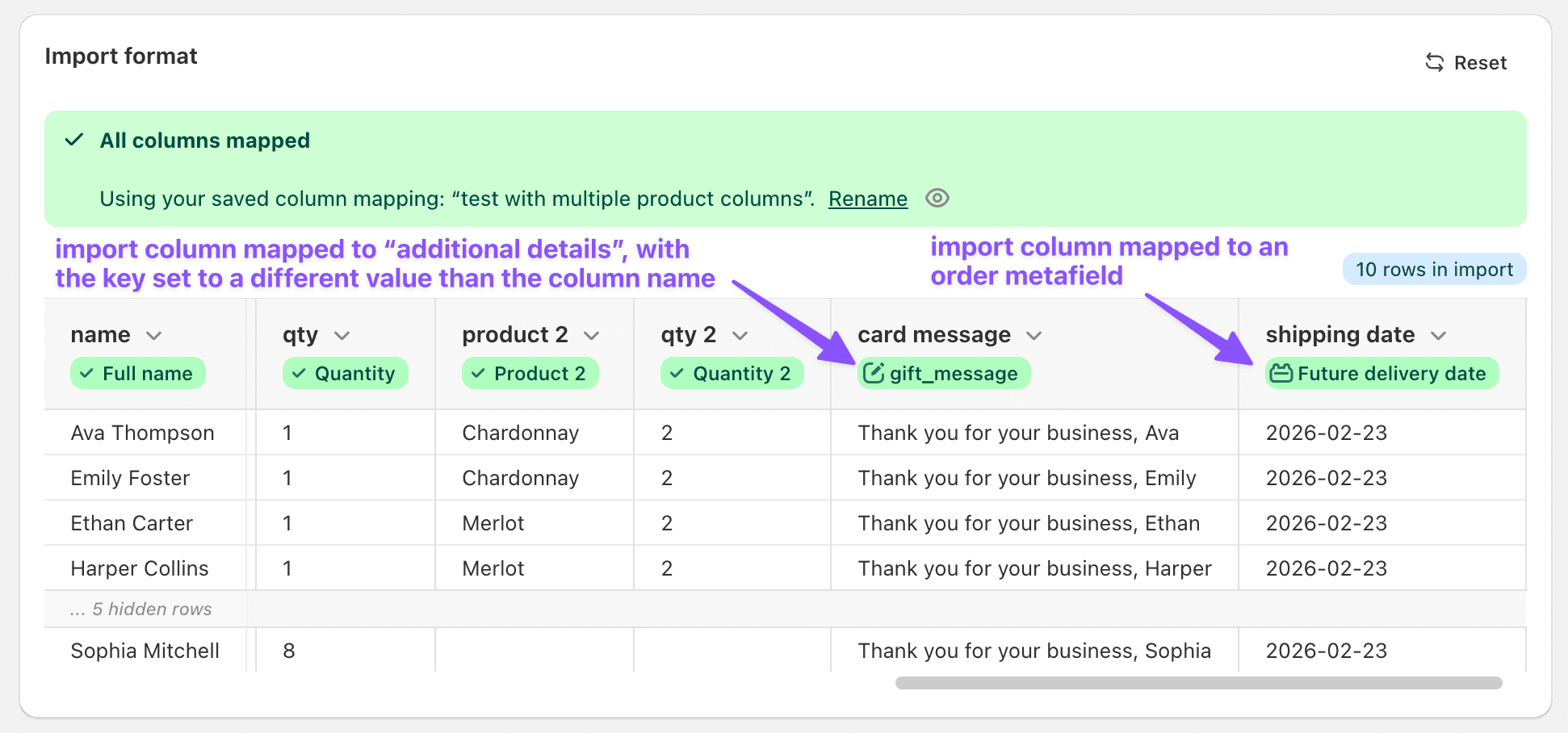
Manual imports: map spreadsheet columns directly to an order metafield.
In the spreadsheet uploader, you can now select an order metafield as the destination for a column—useful when you want import data to land in structured Shopify metafields rather than notes or line item properties.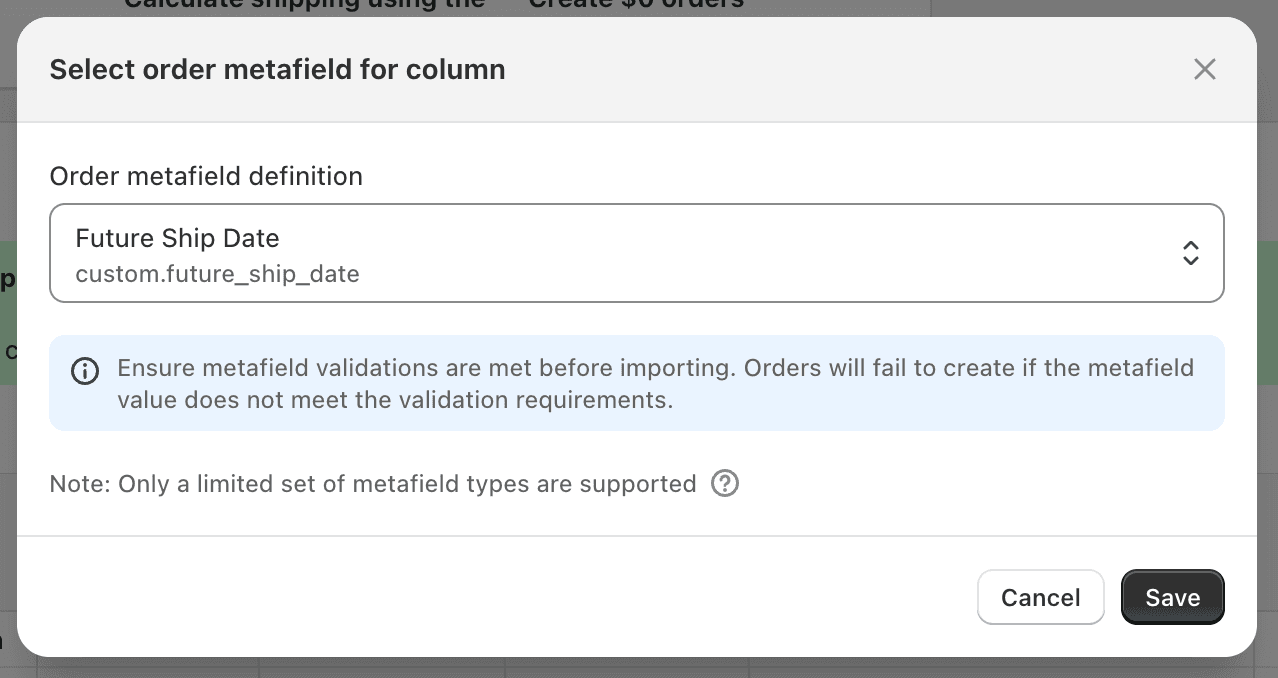
Select order metafield for column — ensure metafield validations are met before importing; orders will fail to create if the metafield value does not meet validation requirements.
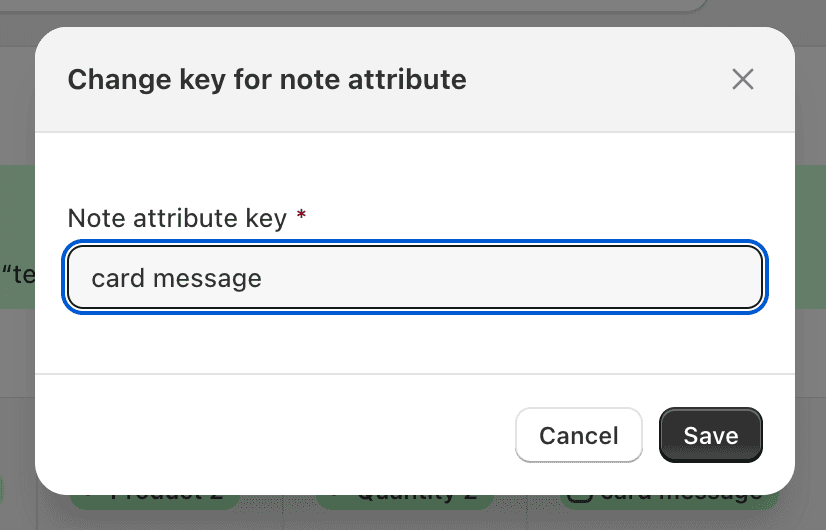
Note: Make sure the imported column’s format/content matches any Shopify metafield validation rules.Rename the import column ‘key’ when mapping to an order ‘additional details’ field.
This is helpful when you want the stored key to be different from the incoming column header (for example, to match an existing naming convention used by your ops team or integrations).Screenshot caption: “Import column mapped to ‘additional details’, with the key set to a different value than the column name.”